Making improvements to your stream doesn’t always have to involve spending money. If anything, the best improvements one can make don’t involve money at all. But for streamers on a budget, knowing where to make adjustments without breaking the bank can truly take you farther than spending money on the latest equipment.
Here are a few thought-starters for ways you can improve your stream without spending big bucks on new equipment!
Snap Camera is a application that allows users to apply Snapchat filters to their non-mobile cameras, such as webcams. You can take pictures and record videos within the app itself, or use it within video applications such as OBS. Though the app has been available for some time, I’ve only recently gotten around to it. Will I be applying filters to my face in future streams?
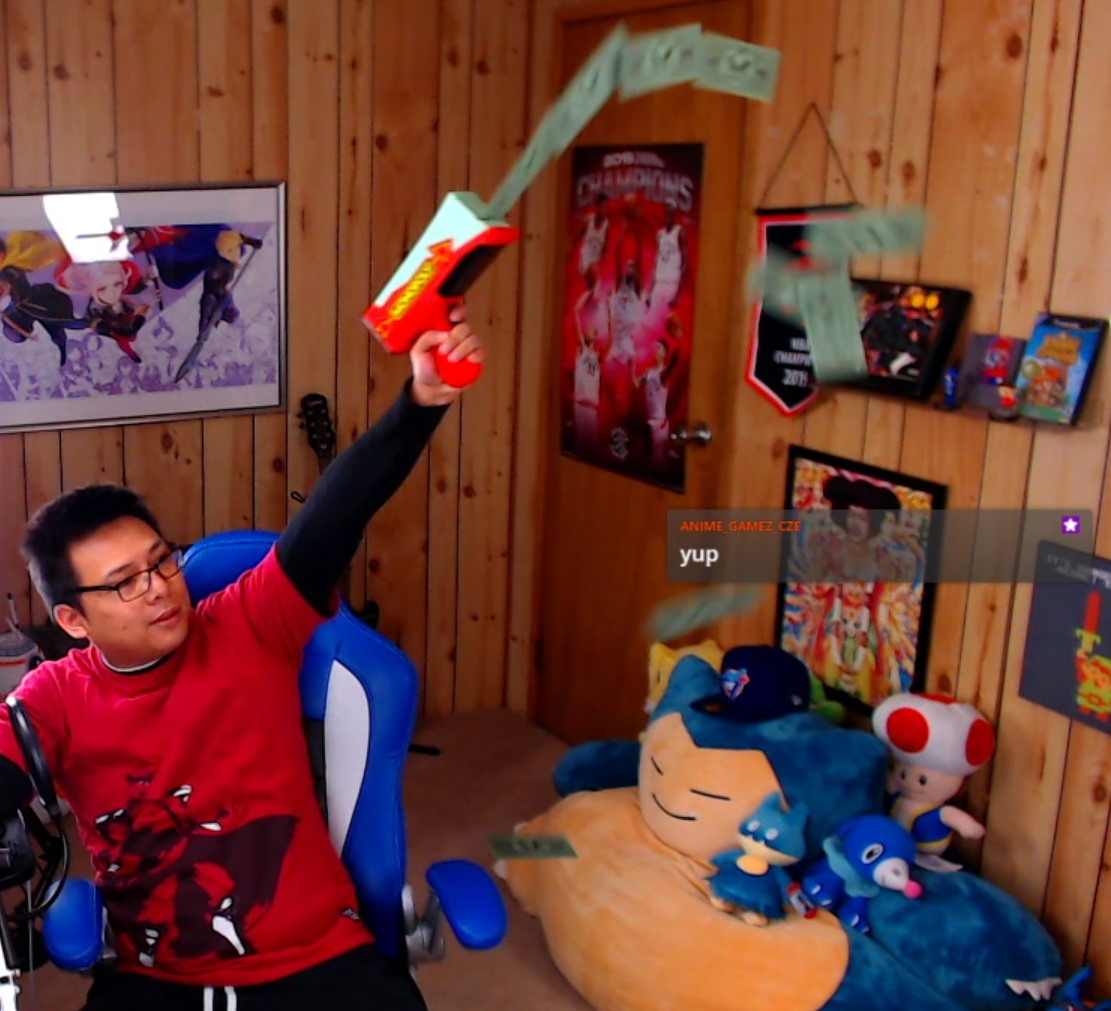
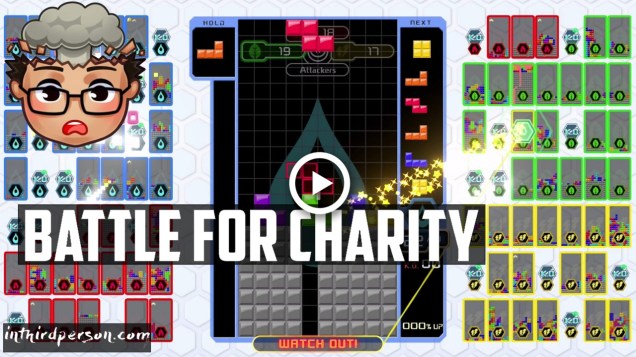
The Tetris 99 community on Twitch returns one more time to help me raise money for Extra Life! Along the way, I perform some basketball tricks (with almost catastrophic results) and lead a guided meditation!
View the full post to see the full stream, highlights, and shoutouts!
When it comes to streaming equipment, I strongly vouch for starting with whatever you’ve got. If you’ve only got the mic built into your laptop, use that first. If you have a gaming headset, that works as well. Upgrades can wait until you spend some time streaming with your current gear and figuring out
But when you’re ready to upgrade, would it be better to get a standalone microphone? Or would a nicer gaming headset do the trick? Using my own gear, I put these options to the test!
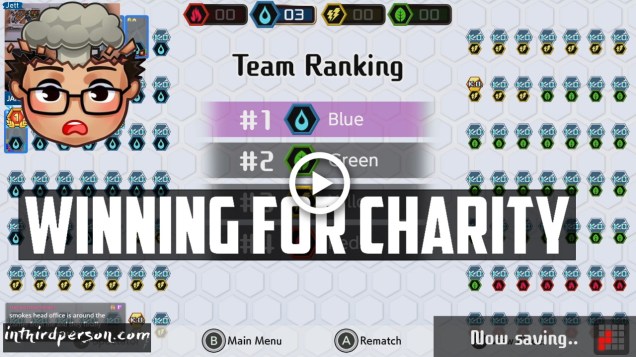
The Tetris 99 community on Twitch returns to win more in support of Extra Life. How much can we raise this time? We also discuss that time I did something embarrassing in my sleep, times that hype got to us, and I share a story for how our Extra Life donations truly made a difference!
View the full post to see the full stream, highlights, and shoutouts!
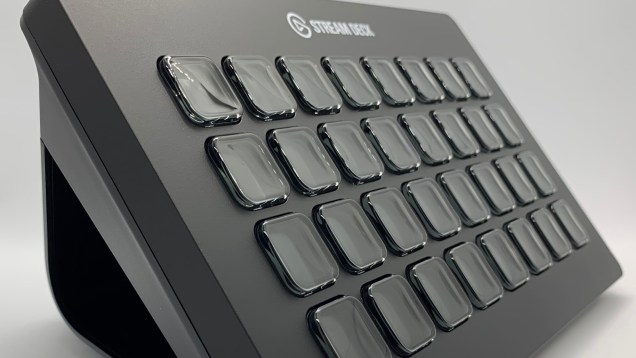
In the wake of the Elgato Stream Deck, stream controllers have become a popular addition to one’s setup. They allow streamers to seamlessly manage their shows in ways that aren’t as efficient as one could manage with hot keys or a mouse.
Despite the initial sticker shock for what amounts to “just” 15 buttons at face value, my Stream Deck has proven its worth many times over. From scene changes, to managing voice changers, to complex event sequences triggered by a single button, my shows wouldn’t be the same without it.
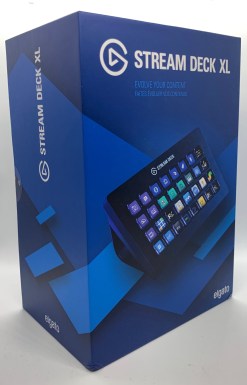
Though the standard set of 15 buttons should suffice for most, I’ve long since run out of space due to my production-heavy shows. Folders allow me to squeeze in a few more actions, but most activities require me to cycle between menus with extra presses, negating some of the device’s convenience. For streamers like me who are in need of even more control, the Stream Deck XL has us covered.
In a world where 16:9 is the norm, retro games created with the old 4:3 aspect ratio can be a pain to stream. Having to fit a square gameplay feed into a rectangle overlay leads to a lot of empty space, forcing streamers to create overlays specific to retro gaming.
One potential way to fill the extra space is to mirror the gameplay and blur the background. This effect is most commonly used when displaying vertically-shot videos on a widescreen display. Here’s how to implement this look on your stream!
The Tetris 99 community on Twitch joins me to take on the world! How many can we win in support of Extra Life? We also discuss gaming chairs and ponder how Halloween is going to work this year.
View the full post to see the full stream, highlights, and shoutouts!
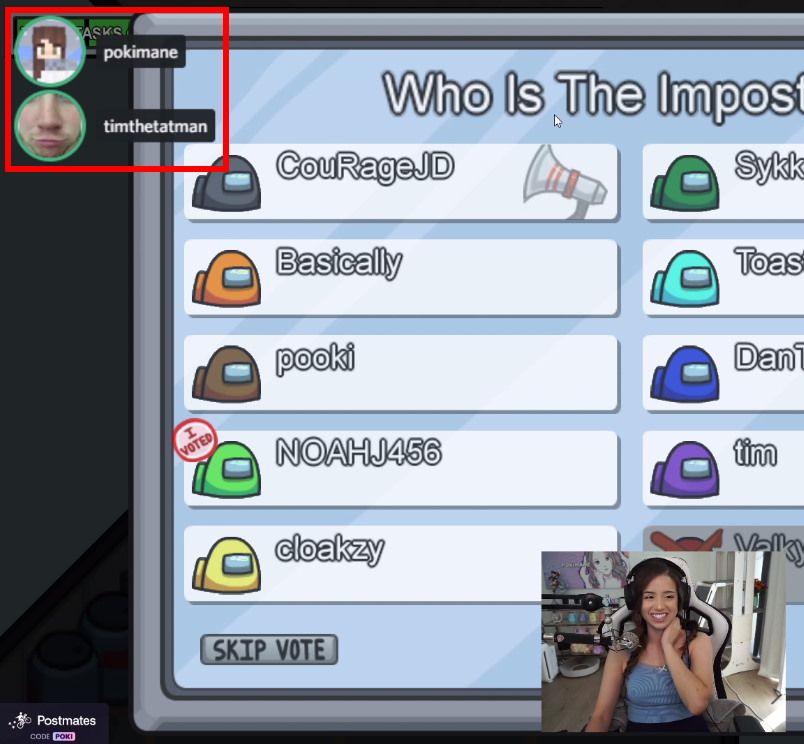
Among Us is the hot game right now, particularly in the world of Twitch. Most of its best parts involve players debating whodunnit. As a viewer, it can be difficult to know who is talking, since you usually only see the streamer.
While browsing Pokimane‘s stream, I noticed that she had a particular solution to this problem. How did she get her Discord voice chat bubbles to appear on screen? Follow this guide and you can have this feature on your stream too!



 In Third Person